
Screen scripts
Scripts are written in JavaScript and come in two kinds.
| Client | Server | |
|---|---|---|
| Run in | The operator program and browser, separately for each client | The server, as a single instance |
| Written in | Element and screen events, scripts/*.js modules |
Tasks and serverscripts/*.js modules |
| Can use | Tags, screen elements, windows, operator questions | Tags, databases, files, the log |
| Work with no operator | No | Yes |
This page covers client scripts. See also Elements from scripts, Server scripts and Examples.
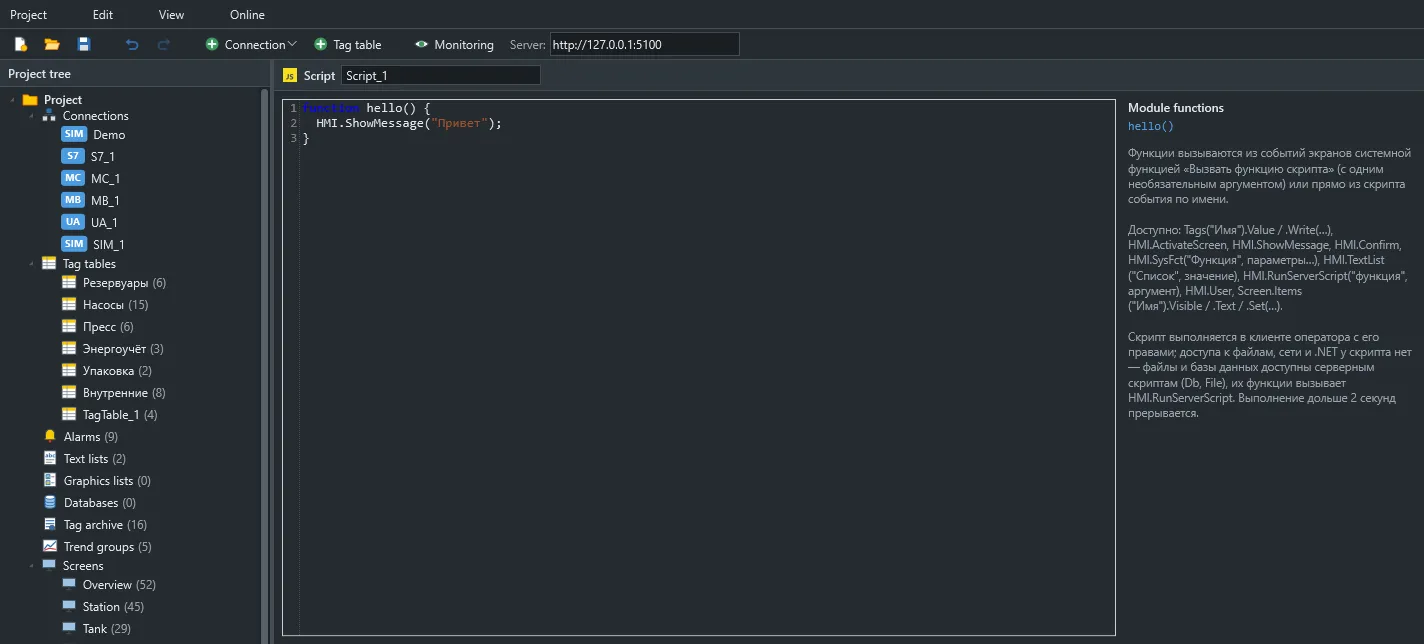
Where to write a script
Section titled “Where to write a script”On an event. Open the Events tab of an element or screen and write the script. The code runs as a function body, so return works and var creates a local variable.
if (Tags("Line.Mode").Value !== 1) return;Tags("Line.Start").Write(true);In a module. Functions in scripts/*.js are visible to every client script. Call them directly from an event or with the RunScript system function.
function startLine(mode) { if (Tags("Line.Fault").Value) { HMI.ShowMessage("The line is in fault"); return; } Tags("Line.Mode").Write(Number(mode)); Tags("Line.Start").Write(true);}A function called through RunScript receives an optional text argument as its first parameter.
Modules run once, on the first script of a session. Their globals last until the user signs out, and each client has its own.
Available objects
Section titled “Available objects”| Object | What it is |
|---|---|
Tags(name) |
A tag by name |
HMI |
Windows, messages, navigation, system functions |
Screen |
Open screens and their elements |
Item |
The element whose event is running; null on screen events |
Standard JavaScript is available: let, const, arrow functions, classes, Math, JSON, Date, and array and string methods.
Browser and system facilities are not: window, document, fetch, setTimeout and require are undefined. For periodic work, use the screen’s Cycle event.
Execution order
Section titled “Execution order”- The script runs to completion without waiting for the network.
- Element changes are visible to later lines at once, and reach the screen in one repaint after the script ends.
- Tag writes and system functions are queued and run in order after the script.
So a written value cannot be read back in the same script:
Tags("Counter").Write(5);HMI.ShowMessage(Tags("Counter").Value); // shows the old valueKeep the value in a variable if you need it later.
Limits
Section titled “Limits”| Limit | Value |
|---|---|
| Time per run | 2 seconds |
| Statements | 2,000,000 |
| Recursion depth | 256 |
| Memory | 64 MB |
A script stuck in a loop is stopped with a message and the client keeps running.
Errors
Section titled “Errors”A script error is shown to the operator with its line number, and queued writes are not performed. The editor reports syntax errors in the project check.
var level = Tags("Tank1.Level");| Member | Description |
|---|---|
.Name |
Tag name |
.Value |
Last value from the subscription: Bool, number or string; null if there is no value yet |
.Read() |
Same as .Value |
.Quality |
Quality: Good, Uncertain, Bad, CommFailure and others |
.Write(value) |
Write after the script |
.Value returns the last known value even after communication is lost. When a command depends on the value, check quality:
var level = Tags("Tank1.Level");if (level.Quality !== "Good") { HMI.ShowMessage("No reliable level value"); return;}Write converts the value to the tag’s type. Writing null is not allowed. Permissions are checked at write time and again on the server, and the operator sees a message if they are missing.
A tag that does not exist causes a script error naming it.
The HMI object
Section titled “The HMI object”HMI.User
Section titled “HMI.User”The signed-in user’s name.
HMI.ActivateScreen(name)
Section titled “HMI.ActivateScreen(name)”Opens a screen after the script ends.
HMI.ShowMessage(text)
Section titled “HMI.ShowMessage(text)”Shows a message window.
HMI.Confirm(question)
Section titled “HMI.Confirm(question)”Asks the operator and returns true or false.
if (!HMI.Confirm("Stop the line?")) return;Tags("Line.Stop").Write(true);HMI.TextList(list, value)
Section titled “HMI.TextList(list, value)”Text from a project text list for a number.
var text = HMI.TextList("Modes", Tags("Line.Mode").Value);HMI.RunServerScript(function, argument)
Section titled “HMI.RunServerScript(function, argument)”Calls a server script function. Requires the Operate permission.
HMI.SysFct(name, …args)
Section titled “HMI.SysFct(name, …args)”Calls any system function by name. Parameters follow the reference order, and optional ones can be left out.
HMI.SysFct("IncreaseValue", "Tank1.Setpoint", 0.5, 10);HMI.SysFct("ShowGeniePopup", "PumpControl", "Tag=Pump1; Title=Pump 1");HMI.SysFct("ShowPopupScreen", "TankDetails", 100, 50);HMI.SysFct("AcknowledgeAllAlarms");The “js:” condition
Section titled “The “js:” condition”Running/on conditions accept an expression prefixed with js:. In it, value is the tag value, and Tags and module functions are available:
js: value == 3 || value == 5The value variable exists only in these conditions. In event scripts, read values through a tag or Item.Value.