
Quick start
Run the demo project
Section titled “Run the demo project”- Open Scadora Runtime from the Start menu.
- Press Start to load the demo project with its simulator.
- Press HMI and sign in as
admin.
The first sign-in password is in %ProgramData%\Scadora\initial-admin-password.txt. It is single-use: the system asks you to set a new one at first sign-in and then deletes the file.
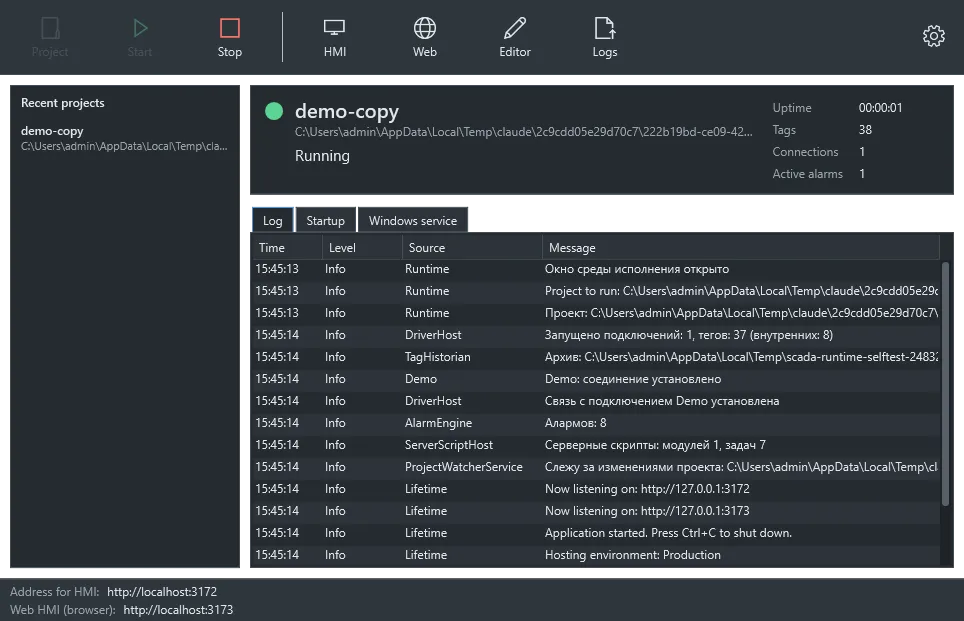
The same thing opens in a browser at http://127.0.0.1:5101.
Explore the demo in the editor
Section titled “Explore the demo in the editor”The Start menu has an Open demo project in the editor shortcut. Your edits apply to the running server automatically.
Your first project
Section titled “Your first project”- Open the editor and create a project.
- Add a connection with the Connection toolbar button. The simulator is fine for a first try.
- Add a tag table and create a tag, for example
Levelof typeFloat32with the simulator addressSINE(0,100,60). - Create a screen, drag a Value element onto it and choose the
Leveltag. - Save the project, select its folder in the runtime and press Start.
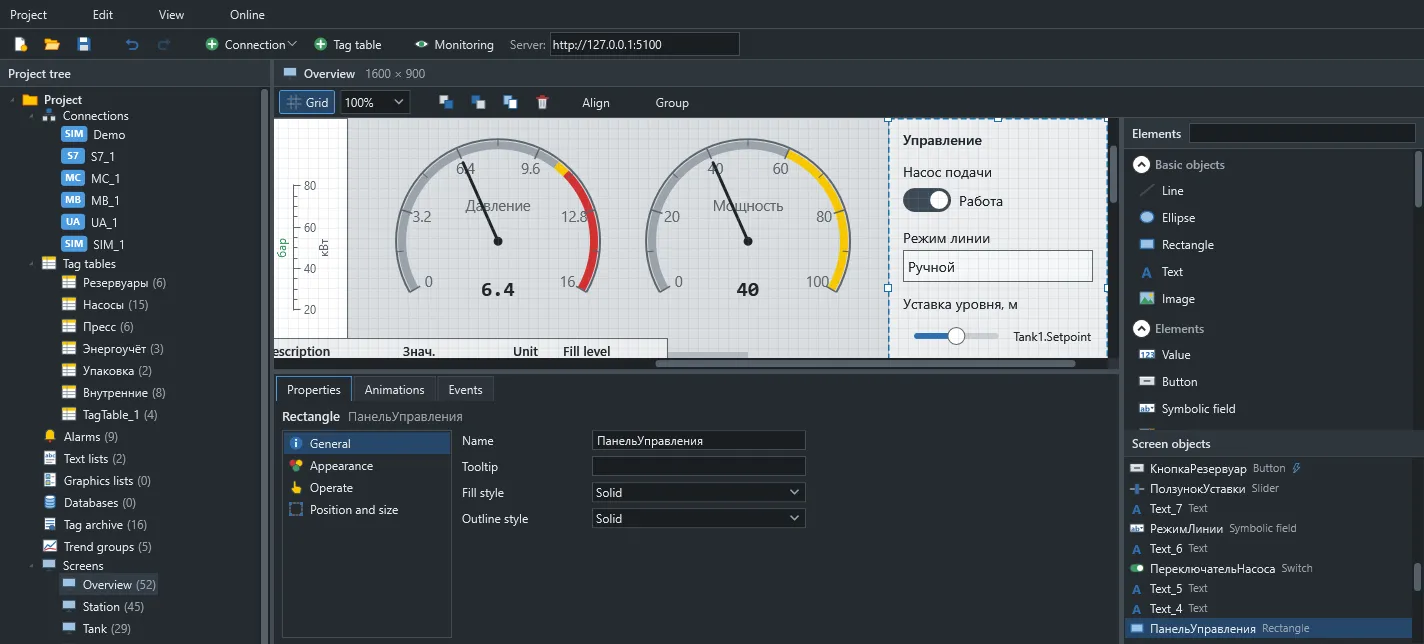
The Project check panel at the bottom of the editor lists problems such as a tag without an address. Double-click one to jump to it.
Next steps
Section titled “Next steps”- Connections and addresses: use a real PLC.
- TIA Portal import: get tags without typing them.
- Animations: colour and visibility by value.